ValvCentral Dashboard
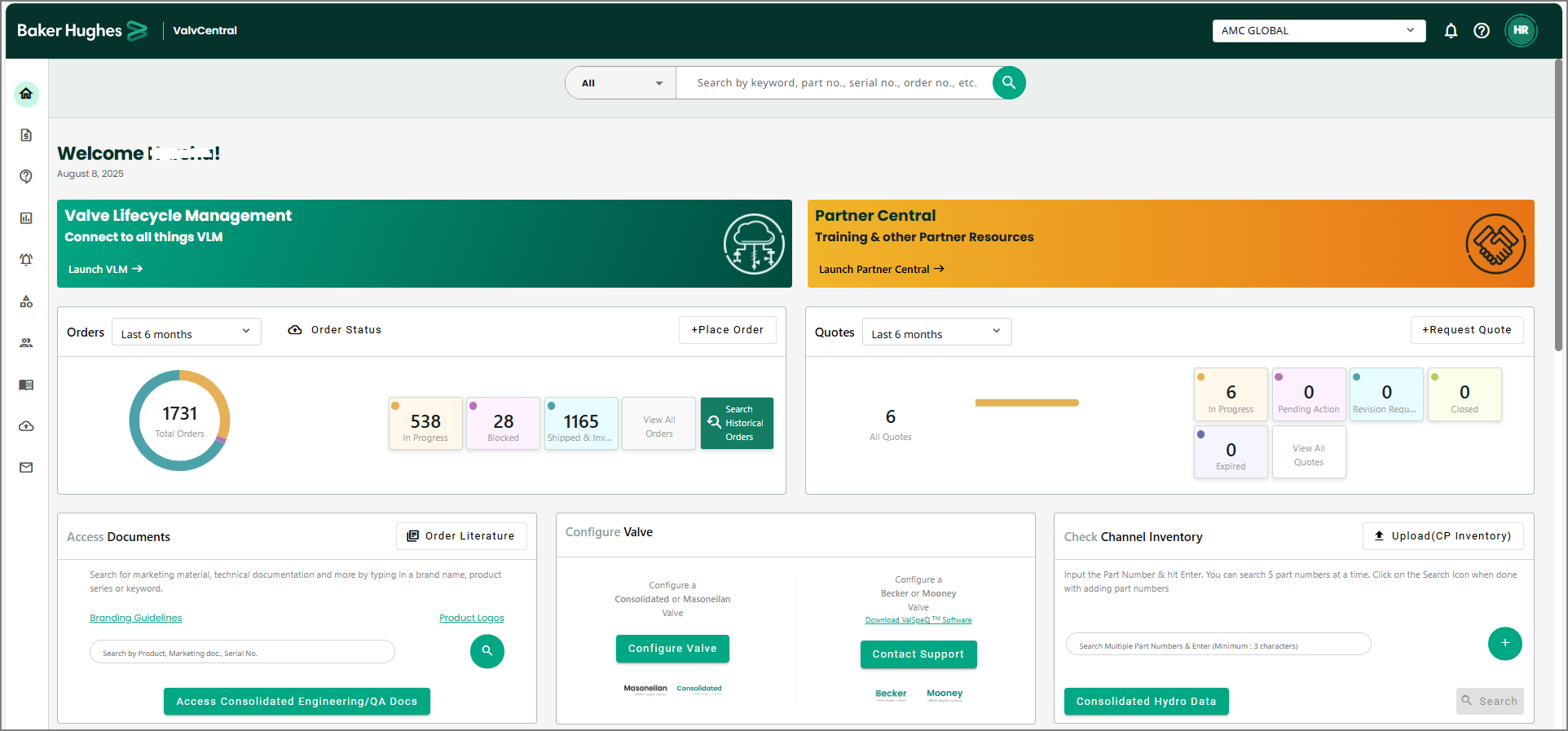
After you log on to the app, you will be directed to the ValvCentral dashboard. The ValvCentral dashboard is comprised of:
-
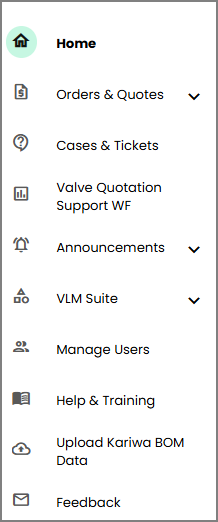
A left navigation pane for navigating the app
-
Global Search bar with an ability to search by keyword, part number, serial number, order number, or purchase order number
-
A notification icon and banners for access to the latest announcements
-
Help link to view the user guide
-
User profile with account details, user settings and quick links to all applications
-
Easy access to Valve Lifecycle Management and Partner Central apps
-
Snapshot of status for Orders and Quotes, Cases and Tickets, and Quotation Support Workflows
-
Access to Marketing and Technical Literature
-
Quick Link to ValvStream™ and ValSpeQ™ support
-
Channel Partner inventory
-
help to view the user manual
-
The latest published news from the website
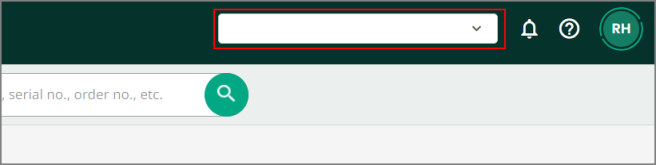
1. Tenant
The tenant or Channel Partner organization name associated with your account appears in this field. If you are a Baker Hughes employee, you can use the dropdown to change the displayed Channel Partner information by using the search field option.
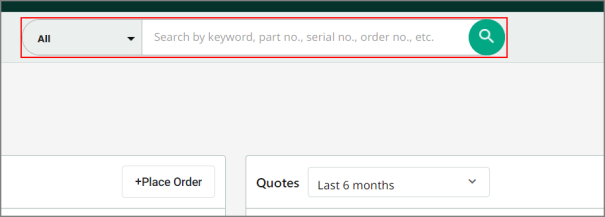
2. Global Search bar
-
The Search bar lets you search within the whole application. You can search using part number, serial number, tag number, order number, or purchase order number.
-
You can filter your search by using the All drop-down list to ease your search and save time.
-
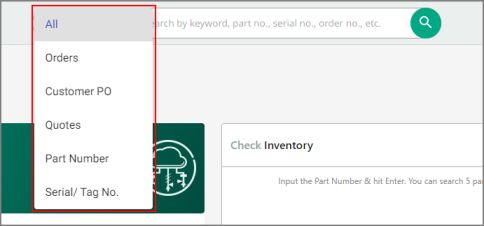
You can filter your search by using the All drop-down list to ease your search and save time.
-
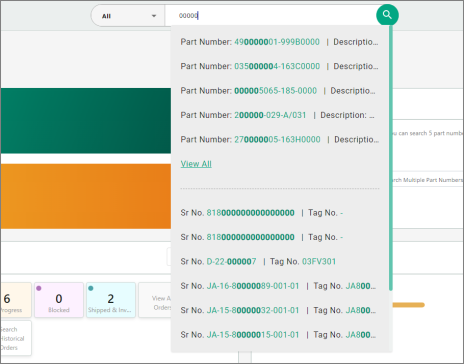
The search feature supports suggestions list
-
On clicking the required option from the list, you will be navigated to the corresponding search result page.
-
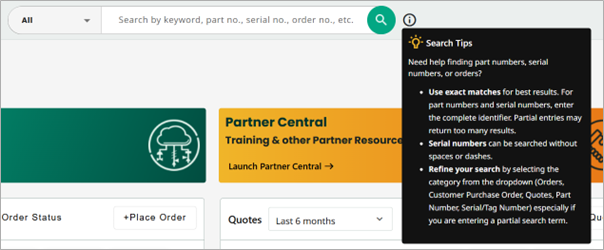
The tooltip, besides Global Search, includes search tips.
3. Notifications
The notification icon contains the list of all the recent announcements. Clicking View All will navigate you to the “All Announcements” page, where you can view or download announcements. Banners may also appear at the top of the dashboard, which can be clicked on to view or download the announcement.
4. Help
The help icon will navigate you to the user guide for the application.
5. User Profile
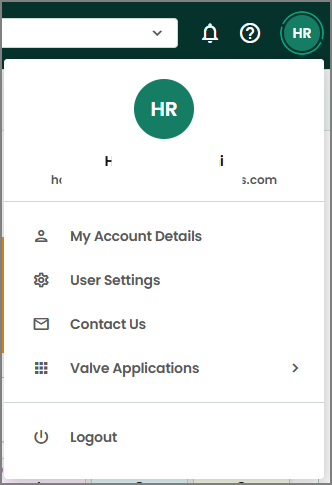
Clicking the user profile displays a menu that allows you to view account details, contact the support team, view and navigate to other Valve applications, and sign out of the application.
For more details, refer the User Profile section.
6. Valve Lifecycle Management
The Valve Lifecycle Management (VLM) section gives access to all of the valve lifecycle solutions, including ValvKeep™ Asset Management, ValvAware™ Online Monitoring, the Asset Service Scheduler and Channel Partner Tools. Click the Launch VLM link to navigate to VLM.

7. Partner Central
Clicking the link will launch the Partner Central app.

8. Check Channel Inventory
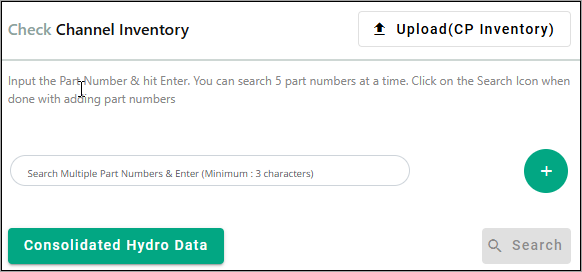
Search channel partner inventory for up to (5) complete or partial part numbers; upload channel partner inventory or connect to Consolidated™ BOM Data (access permission required).
9. Orders
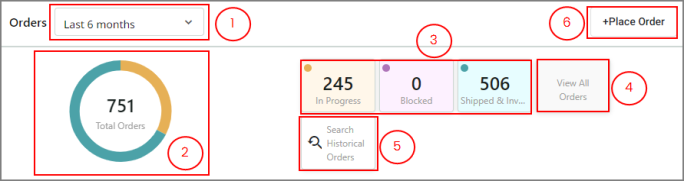
A high-level summary of all orders placed since 2022 with a link to ValvStore™ to place a new order.
-
The Orders date range drop-down defaults to the last six months but can be customized for a specific date range going back to January 2022.
-
A graphical representation of total orders in the time range displayed in the Orders drop-down. It is color coded based on the status.
-
Each button—In Progress, Blocked, and Shipped and Invoiced—is color coded and indicates the number of orders with that status. Clicking any button navigates to the corresponding section on the Orders and Quotes page.
-
The View All Orders button navigates you to the All Orders section on the Orders and Quotes page.
-
The Search Historical Orders button navigates you to the page where you can search the legacy orders by either Order number or Customer PO number.
-
The Place Order button navigates you to the ValvStore™ site.
10. Quotes:
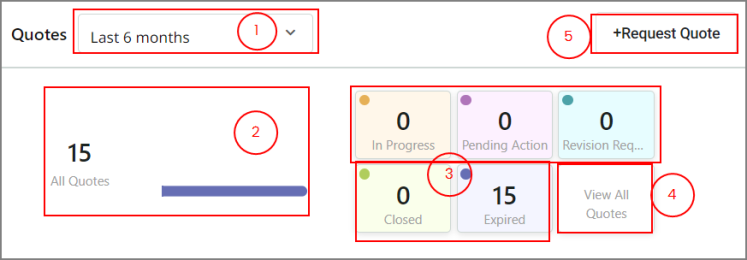
A high-level summary of all quotes requested since 2022 with a link to ValvStore™ to request a new quote.
-
The Quotes date range drop-down defaults to the last six months but can be customized for a specific date range going back to January 2022.
-
A graphical representation of total quotes in the time range displayed in the Quotes drop-down. It is color coded based on the status.
-
Each button—In Progress, Pending Actions, Revision Requested, Closed and Expired—is color coded and indicates the number of quotes with that status. Clicking any button navigates to the corresponding section on the Orders and Quotes page.
-
The View All Quotes button navigates you to the All Quotes section on the Orders and Quotes page.
-
The Request Quote button navigates you to the ValvStore™ site.
11. Track Cases and Tickets
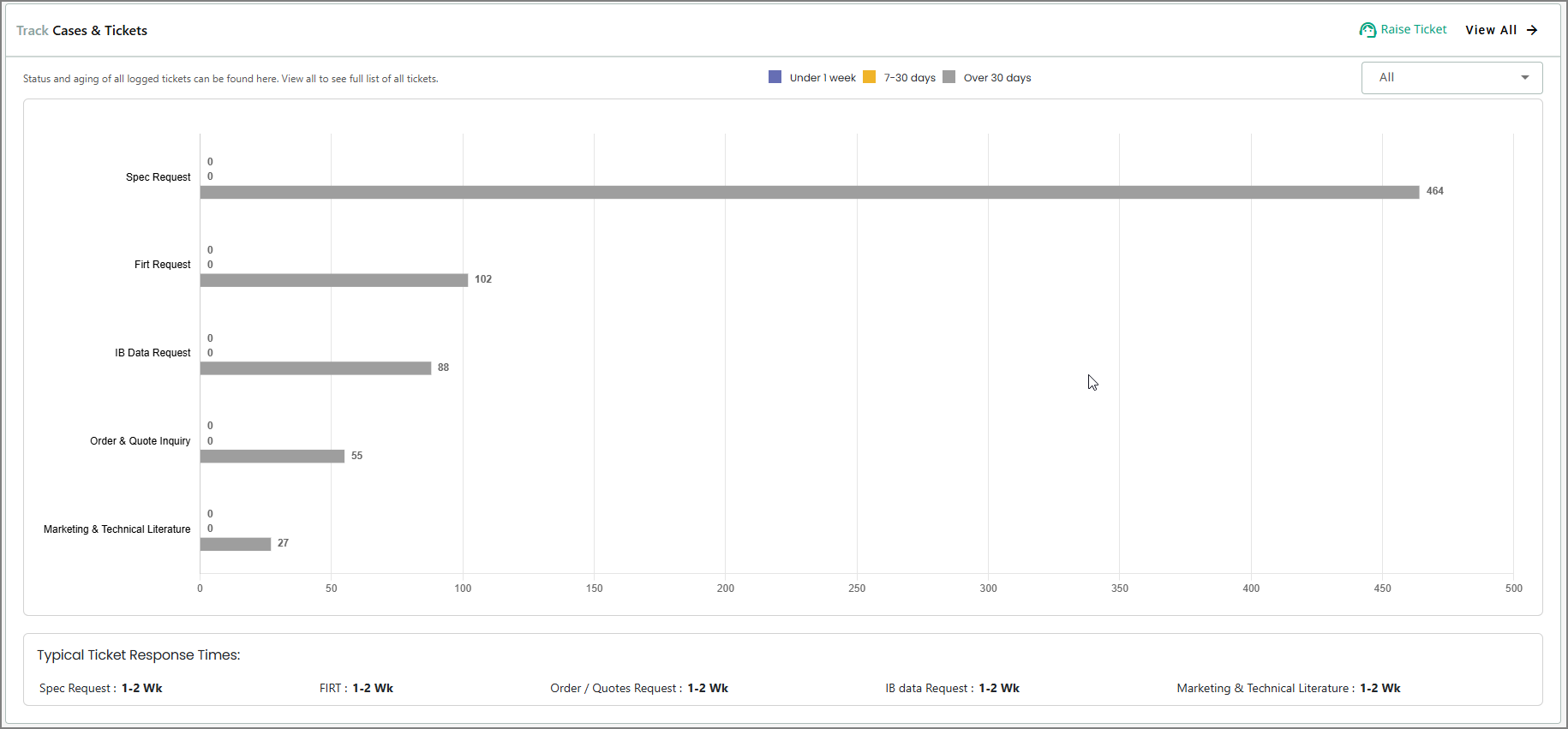
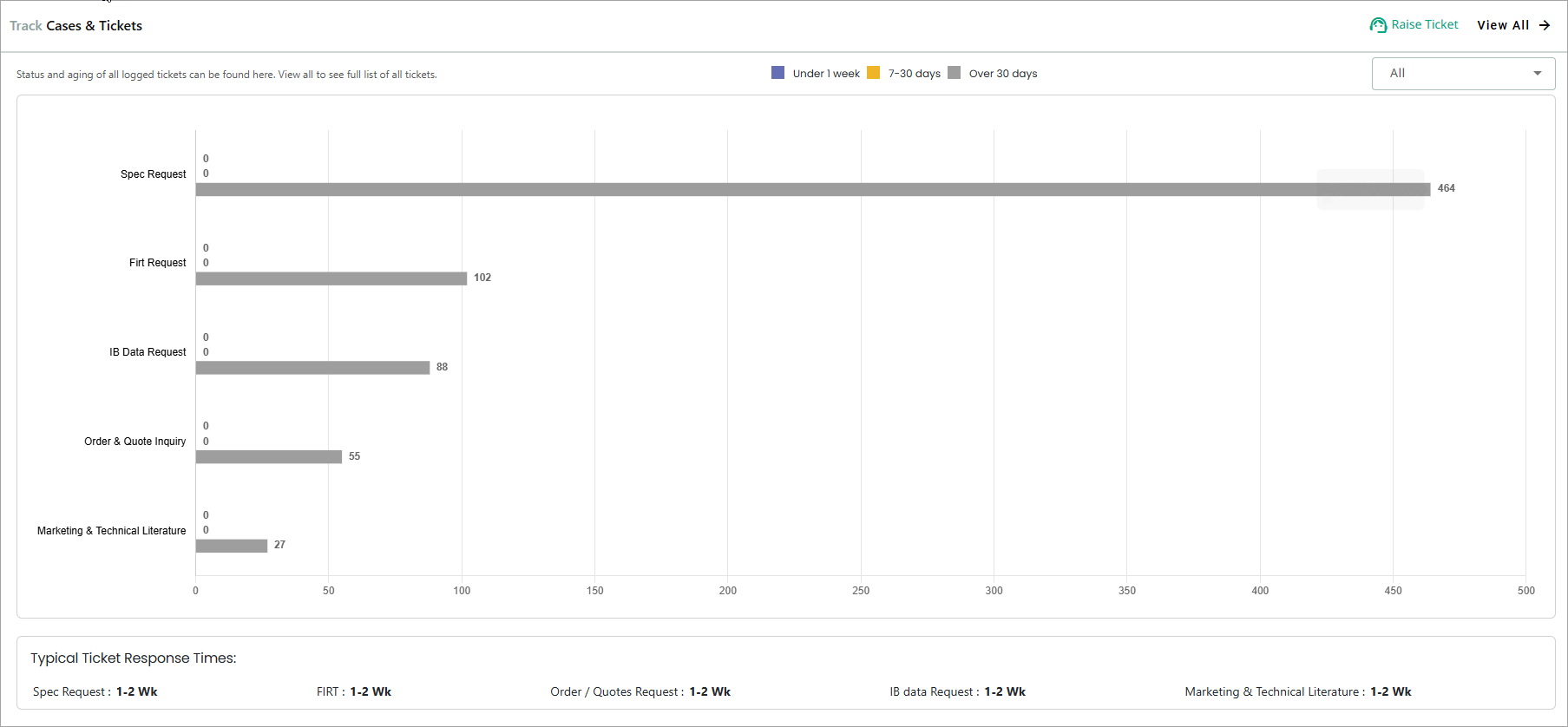
The Track Cases and Tickets section is used to track the tickets and cases related to the valves. The graph denotes the status and age of all the logged tickets.
The filter option lets you view the tickets by aging.
View All navigates to the Cases and Tickets page.
Raise a Ticket allows to raise a new ticket request.
12. Access Documents
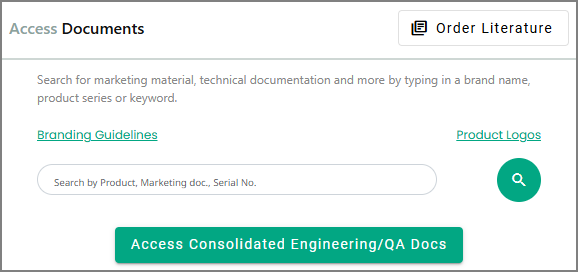
The Access Documents section allows you to search for marketing and technical literature and assets in the Baker Hughes Valves asset management system.
Clicking Access Consolidated Engineering/QA Docs will navigate you to the Consolidated documents application (access permission required).
The quick links for Branding Guidelines and Product Logos navigate you to the digital asset repository.
The Order Literature link navigates you to the on-demand Printing/Literature Fulfillment portal.
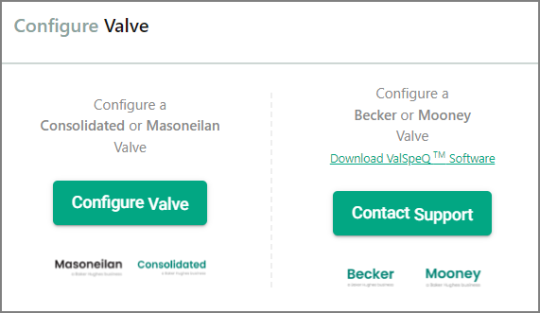
13. Configure Valve
Clicking the Configure Valve button will redirect you to the ValvStream™ application (access permission required).
The ValSpeQ™ software can be downloaded via the quick link for configuration of Becker™ and Mooney™ products. If you need help, click the Contact Support button to open an email.
14. Valve Quotation Support WF Requests
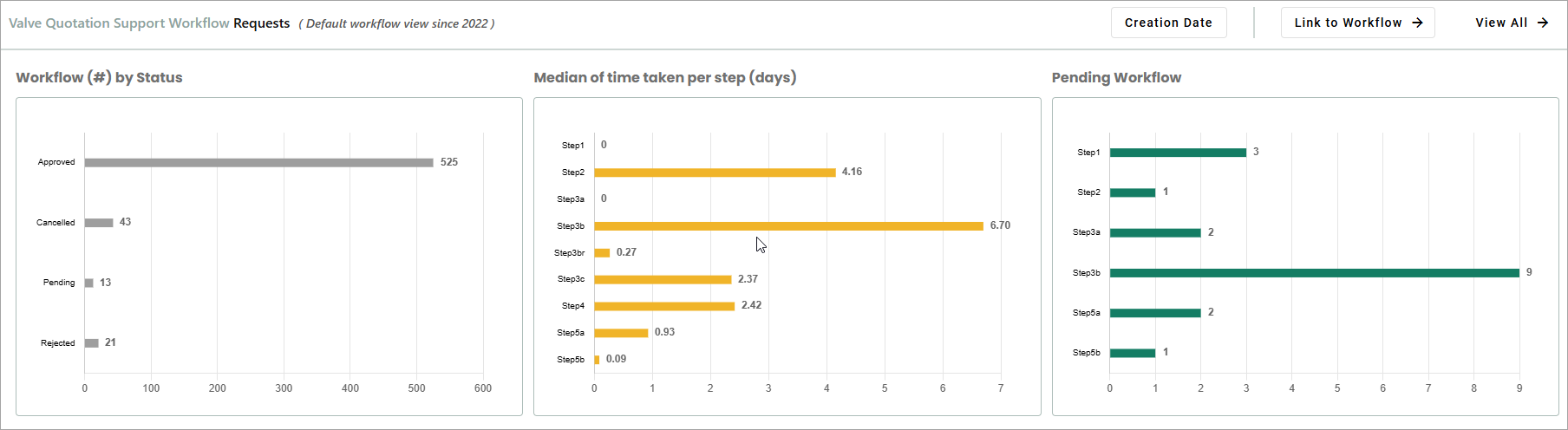
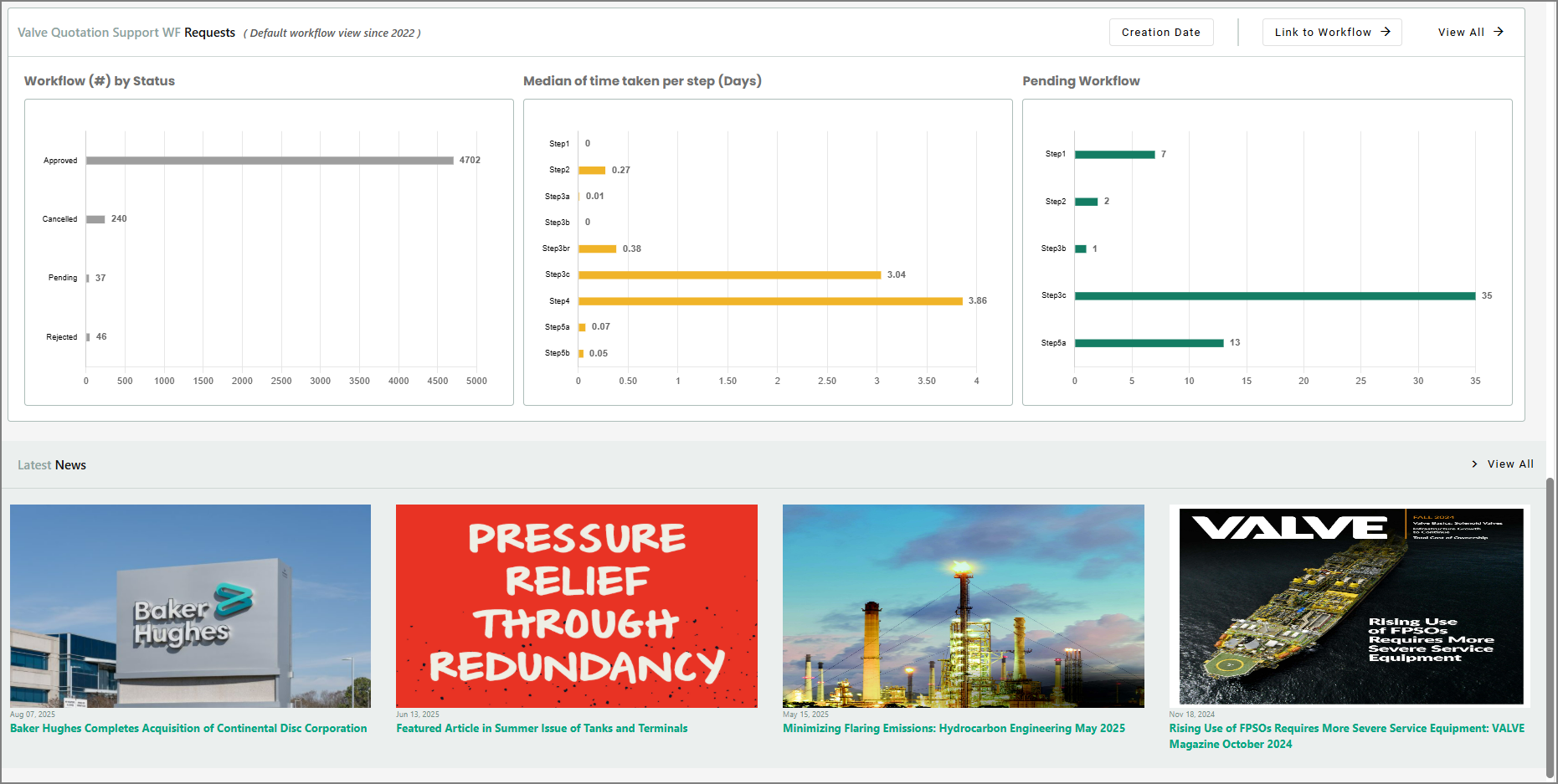
This section displays three graphs (default time range is all requests since 2022):
-
Workflow (#) by Status: representation of all workflow requests by their status.
-
Median of time taken per step (Days): representation of median time taken to process each step in the workflow request.
-
Pending Workflow: representation of pending steps in the workflow.
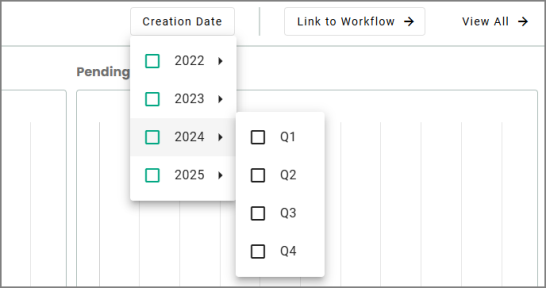
Clicking Creation Date allows you to customize the date range of workflow requests displayed.
Clicking Link to Workflow will navigate you to the Valves Commercial Portal, where you can raise request for valves quotation support.
Clicking View All will navigate you to the Valve Quotation Support WF page, where you can view all the support requests.
15. Latest News:
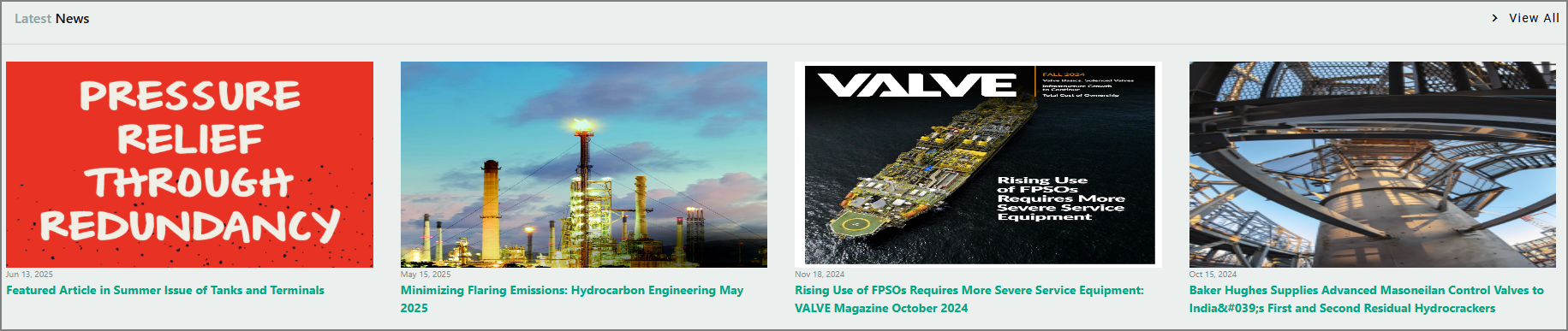
This section displays recent articles published on the Valves website.
Click each headline of news for more information.
The View All link at the right takes you to the News Room page.
16. The left navigation pane
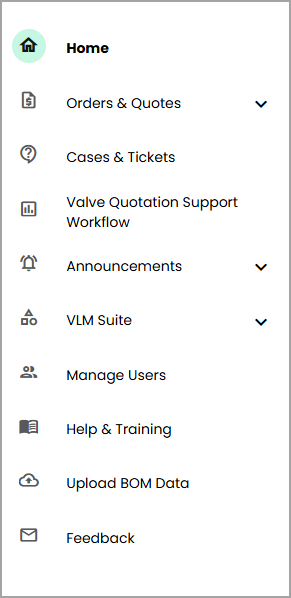
The left navigation pane provides you a deeper dive to all the modules displayed on the dashboard.
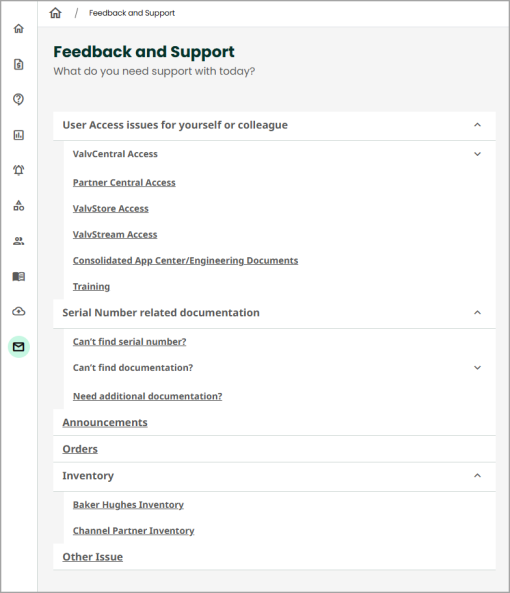
Feedback
Clicking Feedback opens a dedicated pane that consolidates user feedback and support emails. It also provides quick navigation to topics where users need additional assistance.